Coloring Book — free online Casual game
34 original pictures to fill, paint and save: animals, nature, everyday things and mandalas.
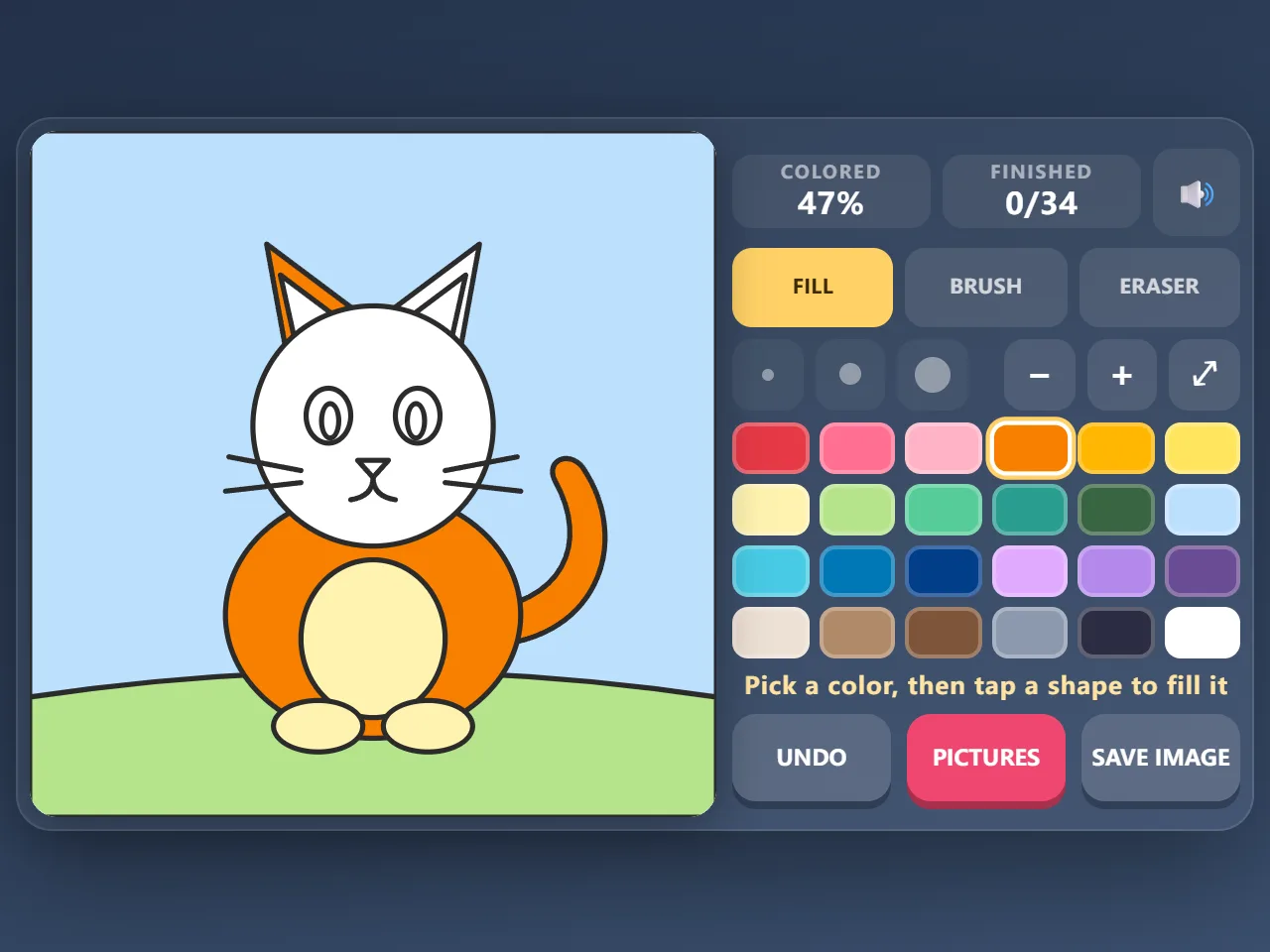
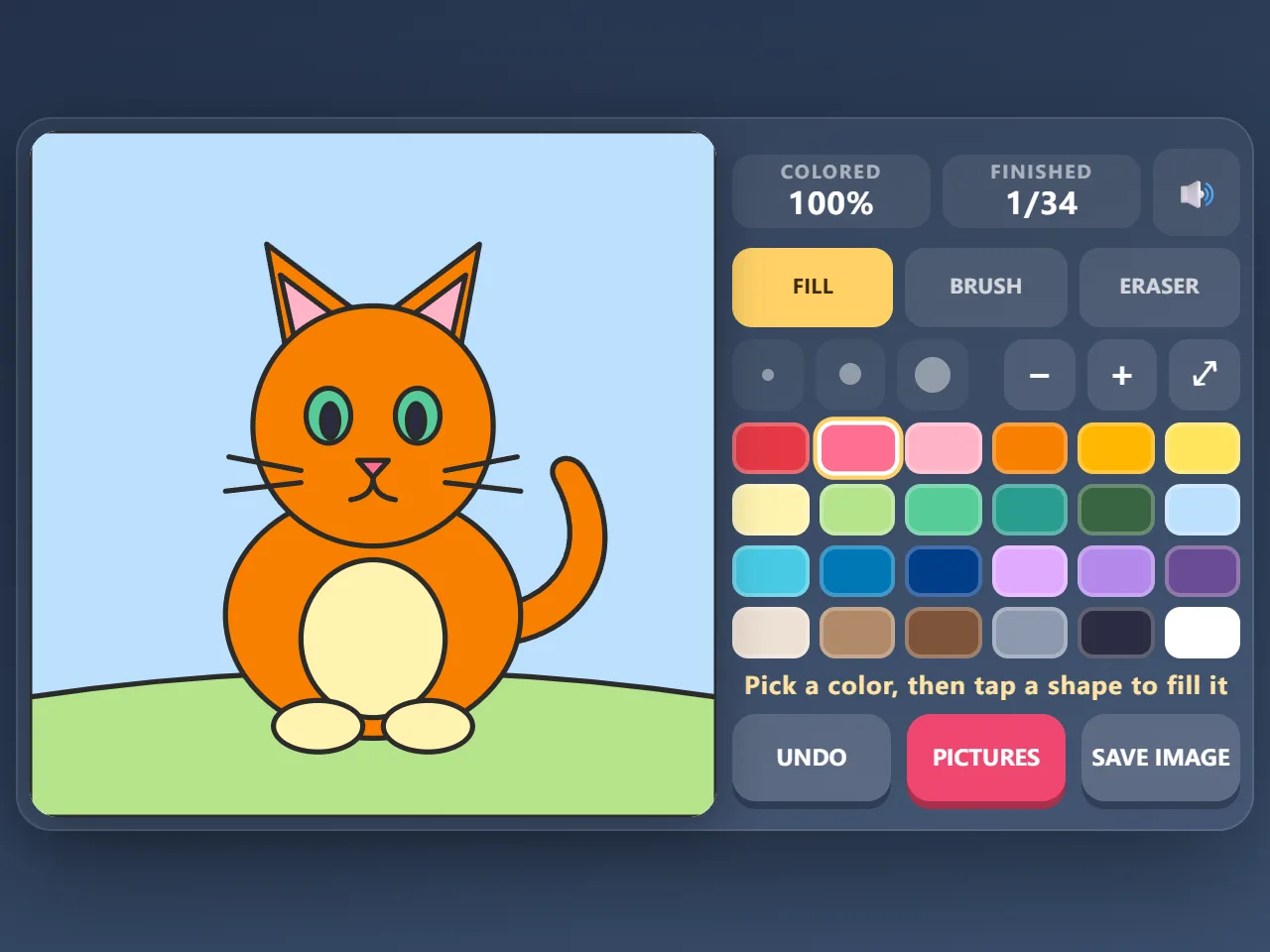
Coloring Book is a free online coloring game for kids and grown-ups, right in your browser with no download and no sign-up. Pick one of 34 original line drawings, from a cat, an owl and a whale to a mushroom house, a rocket, a sunflower and eight mandalas and patterns, then tap a shape to fill it with one of 24 colors. Switch to the brush to paint freehand: it stays inside the shape you start in, so nothing spills over the lines. Undo any step, clear a shape with the eraser, pinch or use the buttons to zoom in on small details, and save the finished picture as a PNG image. Every picture is saved as you go; there is no timer and nothing to lose.
Quick start
- Press Start Game. The last picture you worked on opens, or the first one if you are new.
- Tap a color in the palette, then tap any shape in the picture to fill it.
- Choose Brush to paint freehand, Eraser to take a color off, and Pictures to pick another drawing.
- When every shape has a color the picture is finished: save it as an image or move on to the next one.
How to play Coloring Book
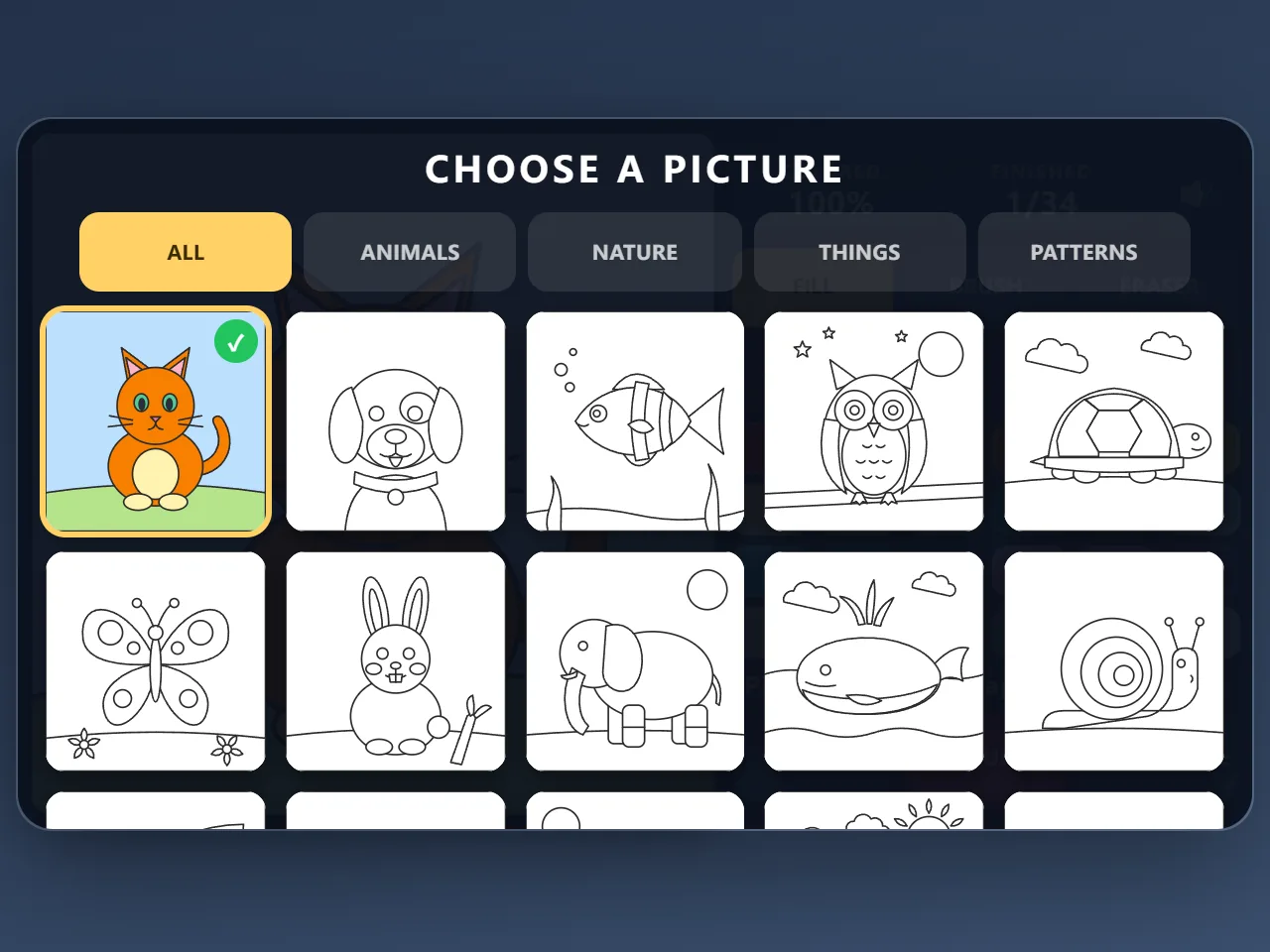
- There are 34 original line drawings in four groups: animals, nature, things and patterns (mandalas and repeating designs).
- Fill: tap a shape and it fills with the chosen color. Tap it again with another color to change it.
- Brush: paint freehand in three sizes. The brush only colors the shape where your stroke starts, so you can paint right up to the lines without going over them.
- Eraser: tap a shape to remove its fill and any brush strokes in it.
- Undo takes back your last steps one by one.
- Colored shows how much of the picture has a color. At 100% the picture counts as finished and gets a tick in the picture list; you can keep adding to it afterwards.
- Every picture is saved in your browser as you go, so you can switch pictures and come back to any of them later. Start over, in the picture list, clears the current picture.
Controls
- Fill a shape: tap or click it
- Paint: choose Brush and drag; pick the brush size with the three dots
- Zoom: pinch with two fingers, turn the mouse wheel, or use the − and + buttons; ⤢ shows the whole picture again
- Move around a zoomed picture: drag with two fingers, or with one finger while Fill or Eraser is chosen; with a mouse, hold Space or drag with the right button
- Keyboard: F fill, B brush, E eraser, Ctrl+Z undo, + and − zoom, 0 whole picture
- Save image: downloads the picture as a 1200 × 1200 PNG
Tips
- Fill the big shapes first (the sky, the ground, the body), then zoom in for eyes and small details.
- Use the brush on top of a fill to add shading, stripes or spots; it never spills into the next shape.
- Mandalas look great with a small palette: pick three or four colors and repeat them ring by ring.
- White in the palette counts as a color, so a shape you want to keep white can still be marked as done.
- Two fingers always zoom and never paint, so you can pinch even while the brush is chosen.
Frequently asked questions
How many pictures are there?
34: eleven animals, seven nature scenes, eight everyday things and eight mandalas and patterns. All of them were drawn for this site.
Can I save my picture?
Yes. Save image downloads it as a PNG file you can keep, print or share. Your work is also saved in the browser automatically, so nothing is lost when you close the page.
Will the brush go over the lines?
No. A brush stroke only shows inside the shape where it began, so you can paint freely near the edges.
Is it suitable for children?
Yes. There is nothing to read while coloring, no timer, no score to lose and nothing to buy, and one tap fills a whole shape, which is easy for small hands.
Is Coloring Book free?
Yes. It is completely free to play in your browser, with no download, no account and no in-game purchases.